Script para versionar foto
import os
import re
import shutil
# Paths
posts_dir = "/home/carlinhoshk/dev/cblog/content/posts/"
attachments_dir = "/home/carlinhoshk/dev/vault-C/_config/assets/fotos/"
static_images_dir = "/home/carlinhoshk/dev/cblog/static/fotos/"
# Step 1: Process each markdown file in the posts directory
for filename in os.listdir(posts_dir):
if filename.endswith(".md"):
filepath = os.path.join(posts_dir, filename)
with open(filepath, "r") as file:
content = file.read()
# Step 2: Find all image links in the format 
images = re.findall(r'\[\[([^]]*\.png)\]\]', content)
# Step 3: Replace image links and ensure URLs are correctly formatted
for image in images:
# Prepare the Markdown-compatible link with %20 replacing spaces
markdown_image = f"})"
content = content.replace(f"[[{image}]]", markdown_image)
# Step 4: Copy the image to the Hugo static/images directory if it exists
image_source = os.path.join(attachments_dir, image)
if os.path.exists(image_source):
shutil.copy(image_source, static_images_dir)
# Step 5: Write the updated content back to the markdown file
with open(filepath, "w") as file:
file.write(content)
print("Markdown files processed and images copied successfully.")
#!/bin/bash
set -euo pipefail

SCRIPT_DIR="$(cd "$(dirname "${BASH_SOURCE[0]}")" && pwd)"
cd "$SCRIPT_DIR"

Set variables for Obsidian to Hugo copy

sourcePath="/home/carlinhoshk/dev/vault-C/Conteudo/Posts/"
destinationPath="/home/carlinhoshk/dev/cblog/content/posts/"

Set GitHub Repo

myrepo="cblog"

Check for required commands

for cmd in git rsync python3 hugo; do
if ! command -v $cmd &> /dev/null; then
echo "$cmd is not installed or not in PATH."
exit 1
fi
done

Step 1: Check if Git is initialized, and initialize if necessary

if [ ! -d ".git" ]; then
echo "Initializing Git repository..."
git init
git remote add origin $myrepo
else
echo "Git repository already initialized."
if ! git remote | grep -q 'origin'; then
echo "Adding remote origin..."
git remote add origin $myrepo
fi
fi

Step 2: Sync posts from Obsidian to Hugo content folder using rsync

echo "Syncing posts from Obsidian..."

if [ ! -d "$sourcePath" ]; then
echo "Source path does not exist: $sourcePath"
exit 1
fi

if [ ! -d "$destinationPath" ]; then
echo "Destination path does not exist: $destinationPath"
exit 1
fi

rsync -av --delete "$sourcePath" "$destinationPath"

Step 3: Process Markdown files with Python script to handle image links

echo "Processing image links in Markdown files..."
if [ ! -f "images.py" ]; then
echo "Python script images.py not found."
exit 1
fi

if ! python3 images.py; then
echo "Failed to process image links."
exit 1
fi

Step 4: Build the Hugo site

echo "Building the Hugo site..."
if ! hugo; then
echo "Hugo build failed."
exit 1
fi

Step 5: Add changes to Git

echo "Staging changes for Git..."
if git diff --quiet && git diff --cached --quiet; then
echo "No changes to stage."
else
git add .
fi

Step 6: Commit changes with a dynamic message

commit_message="New Blog Post on $(date +'%Y-%m-%d %H:%M:%S')"
if git diff --cached --quiet; then
echo "No changes to commit."
else
echo "Committing changes..."
git commit -m "$commit_message"
fi

Step 7: Push all changes to the main branch

echo "Deploying to GitHub Main..."
if ! git push origin main; then
echo "Failed to push to main branch."
exit 1
fi

Step 8: Push the public folder to the hostinger branch using subtree split and force push

echo "Deploying to GitHub Hostinger..."
if git branch --list | grep -q 'hostinger-deploy'; then
git branch -D hostinger-deploy
fi

if ! git subtree split --prefix public -b hostinger-deploy; then
echo "Subtree split failed."
exit 1
fi

if ! git push origin hostinger-deploy:hostinger --force; then
echo "Failed to push to hostinger branch."
git branch -D hostinger-deploy
exit 1
fi

git branch -D hostinger-deploy

echo "All done! Site synced, processed, committed, built, and deployed."
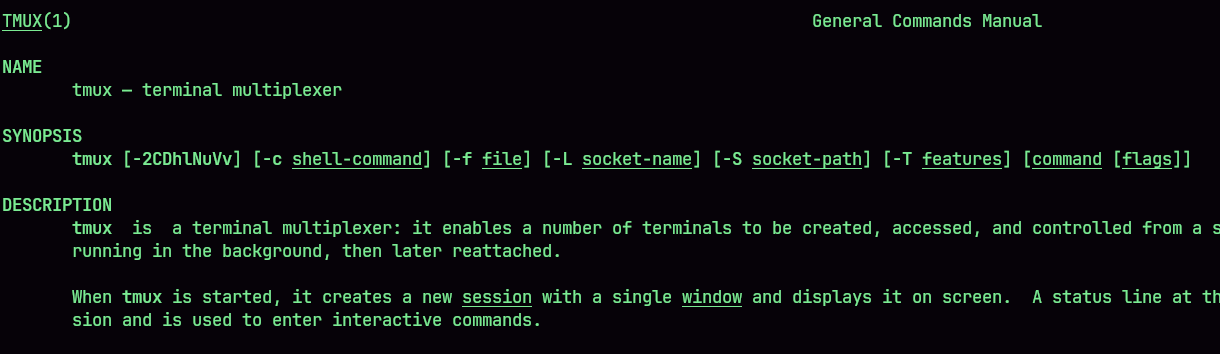 Tmux é um emulador de terminal open source Unix like. Ele permite você ter vários terminais em instancias e servers.
o Tmux não se resume a só isso mas vamos focar nessas duas coisas.
Tmux é um emulador de terminal open source Unix like. Ele permite você ter vários terminais em instancias e servers.
o Tmux não se resume a só isso mas vamos focar nessas duas coisas.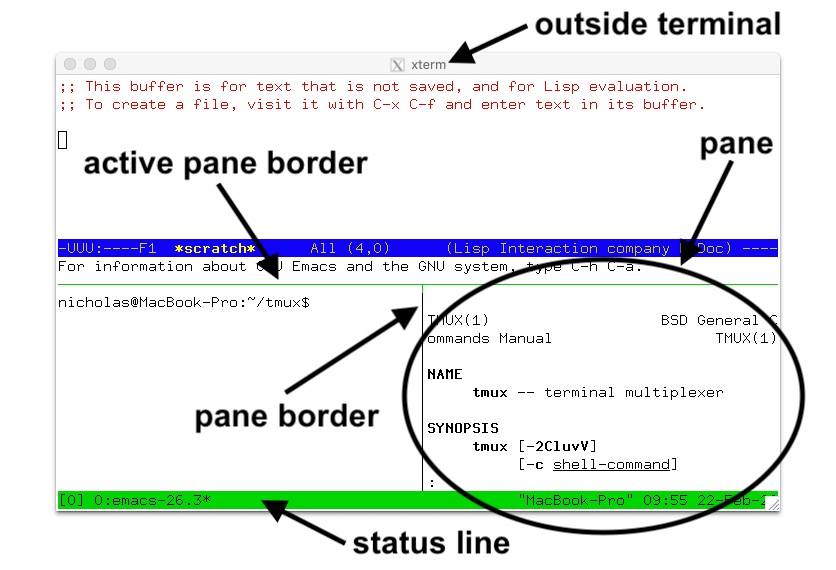
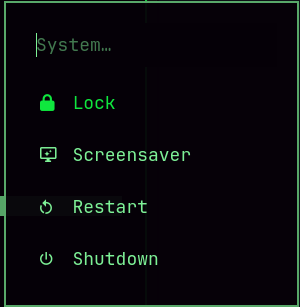 Para quem utiliza versões anteriores percebeu que no commit em 8 de dezembro na atualização para a versão
  Foi retirado o menu para suspender o que gerou bastante comentários da comunidade como é possível ver nos comentários do corpo do
 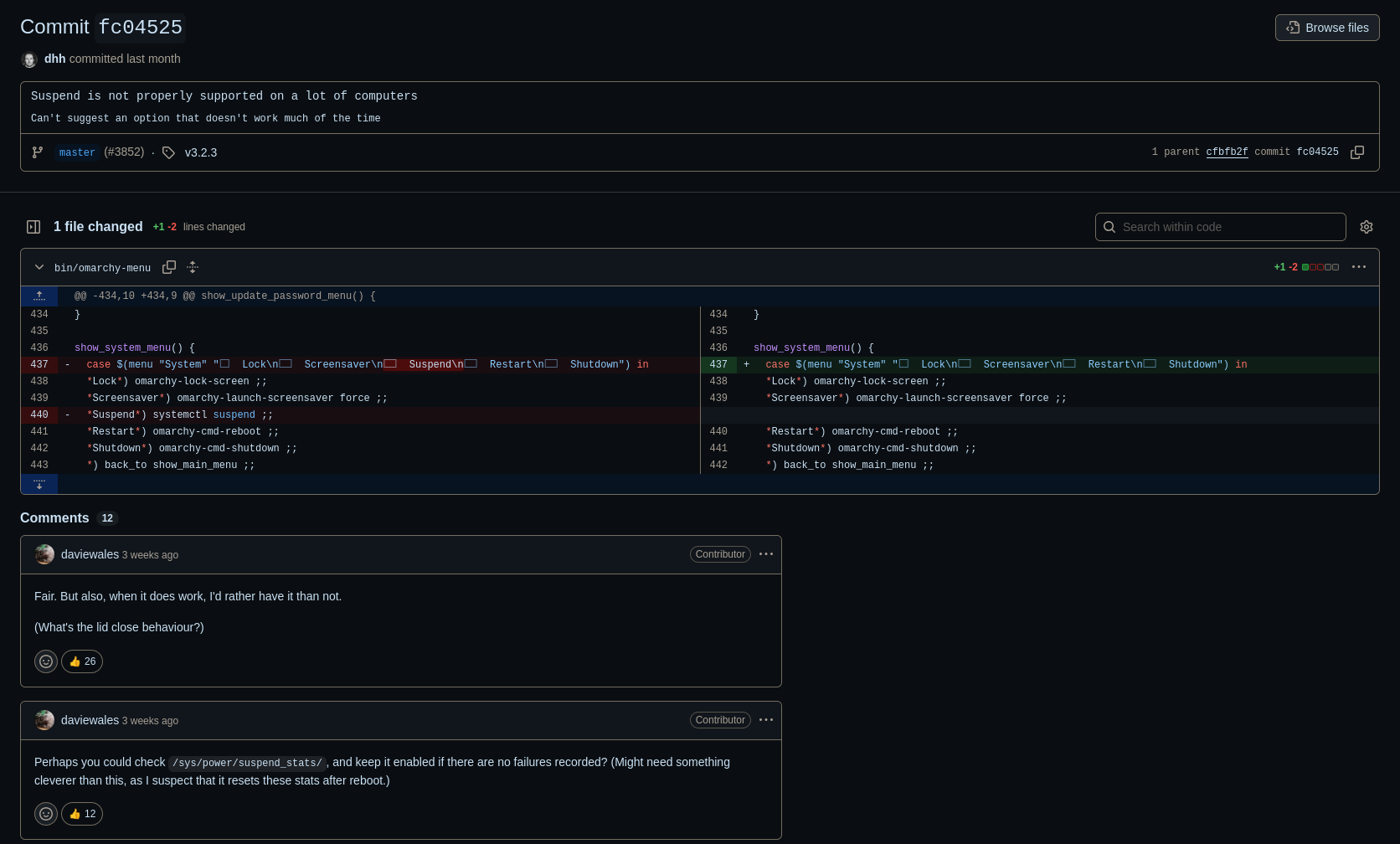 E abaixo vemos a solução do DHH sobre adicionar uma bind para suspender o que eu achei valido, mas é ruim tirar hábitos depois de 2 versões usando o Omarchy Menu -> System -> Suspend.